Requirements
- Docker (with or without Compose), or Python 3.12 to run the app directly
- A Cloudflare API token with permissions suitable for Cloudflare Tunnel configuration changes
Recommended token permissions: Account: Cloudflare Tunnel -> Edit and Zone: DNS -> Edit. For backup-only usage, the token can later be reduced to read-only permissions if your workflow allows it.
Environment variables
Configure the app through environment variables, whether you use Docker Compose, docker run, Portainer, or a direct shell session. Start from .env.sample.
| Variable | Required | Description |
|---|
CLOUDFLARE_ACCOUNT_ID | No | Account ID of the Default profile. With the token also set, setup is skipped and Settings shows both read-only. |
CLOUDFLARE_API_TOKEN | No | API token of the Default profile. |
TOKEN_ENCRYPTION_KEY | No | Fernet key used to encrypt the saved API token. If unset, the app generates one as DATA_DIR/encryption.key (mode 0600). |
AUTO_BACKUP_TIMEZONE | No | Force automatic backups to use a specific IANA timezone such as Europe/Rome. |
BACKUP_RETENTION_DAYS | No | Automatically delete backups older than this many days after new backups are created. |
NOTIFICATION_WEBHOOK_URL | No | Send JSON notifications to a generic webhook endpoint. |
NOTIFICATION_WEBHOOK_EVENTS | No | Comma-separated list of notification events to emit to the webhook. |
TELEGRAM_BOT_TOKEN | No | Telegram bot token used to send notifications through the Bot API. |
TELEGRAM_CHAT_ID | No | Telegram chat, group, or channel ID where notifications should be sent. |
TELEGRAM_NOTIFICATION_EVENTS | No | Comma-separated list of notification events to emit to Telegram. |
DATA_DIR | No | Storage path for the SQLite database and JSON backups. Default: /data. |
REQUEST_TIMEOUT | No | Outbound Cloudflare API timeout in seconds. Default: 20. |
LOG_LEVEL | No | Application log level written to container stdout. Default: INFO. |
CLOUDFLARE_API_BASE | No | Override for the Cloudflare API base URL. Default: https://api.cloudflare.com/client/v4. |
DEMO | No | Enable demo mode. Defaults to false. Disables persistence, automatic backups, notifications, and the backup archive. |
Running the app
Prebuilt images are published on every release on Docker Hub (gfsolone/tikkamasala) and the GitHub Container Registry (ghcr.io/gioxx/tikkamasala), so building locally is optional.
Docker Compose
The docker-compose.yml in the repository builds the image locally and mounts ./data into the container so backups and settings survive restarts.
git clone https://github.com/gioxx/TikkaMasala.git && cd TikkaMasala
cp .env.sample .env
docker compose up -d --build
Then open http://localhost:8080. To use a prebuilt image instead, replace build: . with image: gfsolone/tikkamasala:latest.
Without Docker
python3 -m venv .venv
source .venv/bin/activate
pip install -r requirements.txt
set -a
source .env
set +a
uvicorn app.main:app --host 0.0.0.0 --port 8080
Portainer
Portainer stacks pull an image rather than building from a local Dockerfile. From Stacks → Add stack, paste:
services:
  tikkamasala:
    image: gfsolone/tikkamasala:latest
    container_name: tikkamasala
    restart: unless-stopped
    environment:
      CLOUDFLARE_ACCOUNT_ID: ${CLOUDFLARE_ACCOUNT_ID:-}
      CLOUDFLARE_API_TOKEN: ${CLOUDFLARE_API_TOKEN:-}
      TOKEN_ENCRYPTION_KEY: ${TOKEN_ENCRYPTION_KEY:-}
      AUTO_BACKUP_TIMEZONE: ${AUTO_BACKUP_TIMEZONE:-}
      BACKUP_RETENTION_DAYS: ${BACKUP_RETENTION_DAYS:-90}
      DEMO: ${DEMO:-false}
    ports:
      - "8080:8080"
    volumes:
      - tikkamasala_data:/data

volumes:
  tikkamasala_data:
Use ghcr.io/gioxx/tikkamasala:latest instead if you prefer GHCR. Set the values in the stack's Environment variables panel (Portainer prompts for anything left as ${VAR} without a default) or edit the environment: block directly, adding any other variable from the table above. The named volume can be swapped for a bind mount (e.g. /opt/tikkamasala/data:/data) if you'd rather keep backups on a known host path.
First run & credentials
If CLOUDFLARE_ACCOUNT_ID and CLOUDFLARE_API_TOKEN are both set in the environment, setup is skipped. Otherwise the first page is a setup screen (/setup): enter your Account ID and API token, the app checks them against Cloudflare and saves them only if the check passes. The token is stored encrypted and never shown again in clear.
Afterwards, manage credentials on the Settings page: the token appears as "configured, ending in XXXX", Replace credentials validates new values before saving, and Forget saved credentials removes them from the database without touching backups. Settings also shows the Cloudflare Access status, the version and the encryption key source.
Precedence is per field: database, then environment. Environment values are shown read-only, with a Save a different value option. Every page, the scheduler and restore use these server-side credentials; the browser holds none.
Upgrading from a version that kept the token in a browser cookie: the cookie is migrated into the database once and then deleted (with CLOUDFLARE_API_TOKEN set, it is only deleted). If the token can't be saved (for example the encryption key is invalid), the cookie is kept and the migration is retried on a later request. If the saved token can't be decrypted (for example encryption.key was removed), the app returns to the setup screen so you can save a new one.
Profiles
A profile is one Cloudflare account (Account ID and API token) with its own automatic backup schedule, retention and notification destinations. The first one is named Default; CLOUDFLARE_ACCOUNT_ID and CLOUDFLARE_API_TOKEN feed only that one. Add, rename and remove profiles under Settings → Profiles: credentials are checked before a profile is created, names are unique and an Account ID already used by another profile is refused.
With two or more profiles a profile switcher (dropdown and Switch button) appears in the top bar; the choice is kept in a tm_profile cookie in your browser. Tunnels, Hostnames, Backups, Automation and notification destinations all follow the active profile. With one profile there is no switcher.
Removing a profile deletes its credentials, schedule, destinations and run history, and keeps its backups unless you tick Also delete its backups and confirm the count. Kept backups move to Other accounts and fall under the retention for other accounts, so they can be purged the next time a backup is saved. Default cannot be removed.
Storage layout
Everything is stored under DATA_DIR, which defaults to /data in the container and typically maps to ./data on the host:
app.db: SQLite database for backup metadata, restore history, and saved credentials (the token is encrypted)encryption.key: generated on first use when TOKEN_ENCRYPTION_KEY is not set (mode 0600); keep it, or the saved token can't be readbackups/*.json: exported tunnel configuration snapshots
With the generated key, a copy of the data directory holds both the encrypted token and its key. If you share or back up that directory, set TOKEN_ENCRYPTION_KEY in the environment instead.
What gets backed up
Tikka Masala saves the tunnel configuration returned by the Cloudflare Tunnel configuration endpoints, along with backup metadata: export timestamp, account ID, tunnel ID, tunnel name, and notes. It does not back up arbitrary account-wide Cloudflare settings.
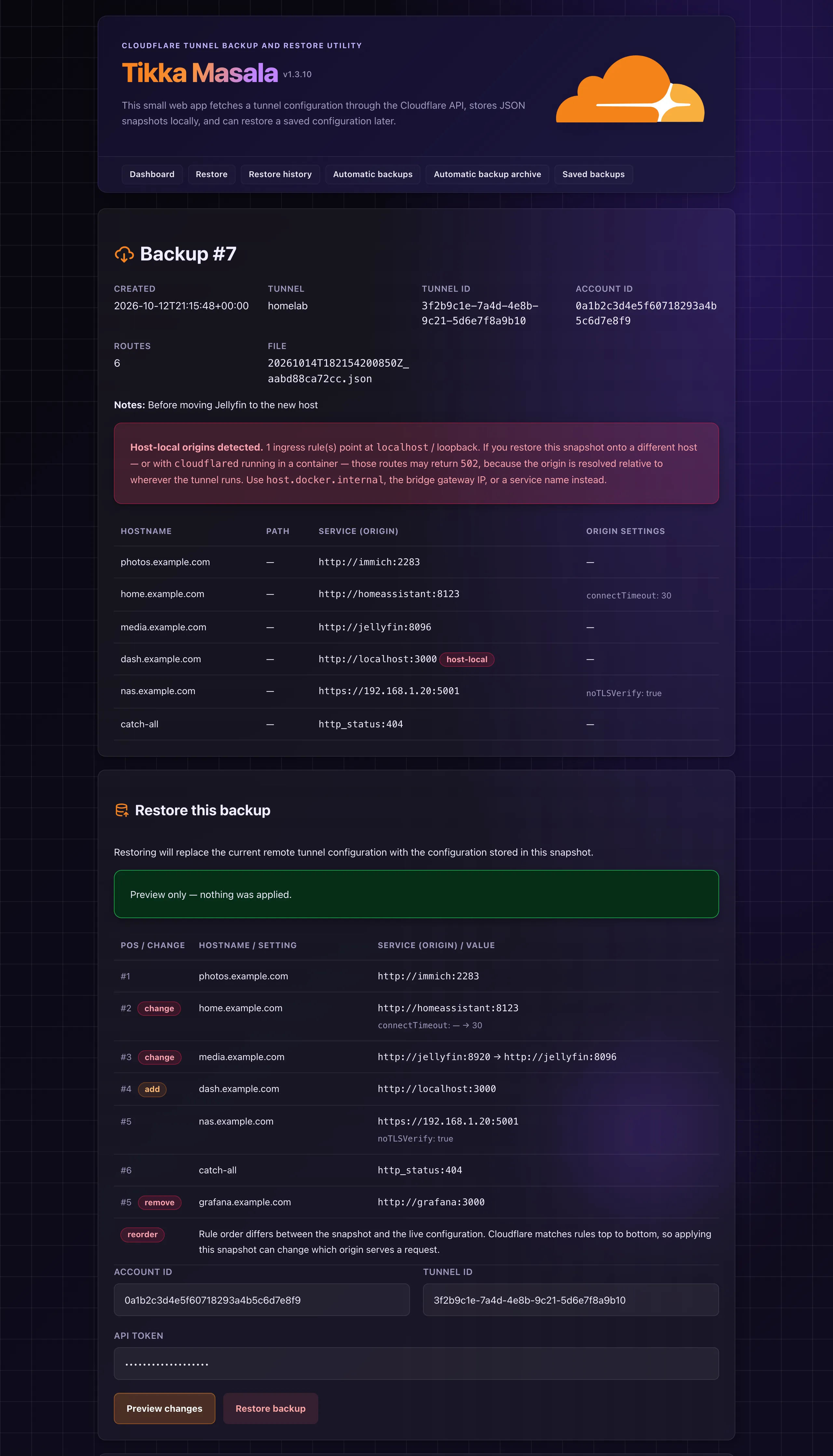
The backup detail page lists every ingress rule from the snapshot (hostname, path, origin service, and any originRequest settings such as noTLSVerify, httpHostHeader or connectTimeout), so you can see where each route points without downloading the JSON.
A rule whose service targets localhost or a loopback address (127.0.0.0/8, ::1) is flagged as host-local. That address is resolved relative to wherever cloudflared runs: when it runs in a container, localhost is the container, not the Docker host, so the route can return 502 after a restore even though it worked where the backup was taken. Use host.docker.internal, the bridge gateway IP, or a service/container name instead.
Restore
Restoring a backup replaces the current remote configuration of the selected tunnel with the configuration stored in the snapshot. The target is the original tunnel or another tunnel in the same account, and the restore uses the credentials saved for that account's profile (restoring needs a profile for that account).
The backup detail page keeps a restore history: when a backup was restored, which account and tunnel it was restored to, and whether the restore targeted the original tunnel or a different tunnel. Entries written by older versions, which allowed restoring to another account, may still show a different account.
Preview changes before restoring
The restore form has a Preview changes button next to Restore backup. It fetches the target tunnel's current live configuration and compares it against the snapshot without applying anything, then shows:
- every ingress rule in the snapshot's order, with its position and whether it's unchanged, changed, or newly added, so an inserted rule that would shadow a later, more specific rule is visible before you apply it
- removed rules, with the position they currently hold live
- which
originRequest settings changed on an existing rule, or which ones a new/removed rule carries
- a note when only the rule order differs (Cloudflare matches ingress rules top to bottom, so a pure reorder can still change routing)
- changes to non-ingress config fields such as
warp-routing, since restore replaces the whole tunnel configuration, not just ingress
Previewing does not apply anything or record restore history; the account ID, tunnel ID, and API token you entered stay filled in so you can review the diff and then press Restore backup.
Automatic backups
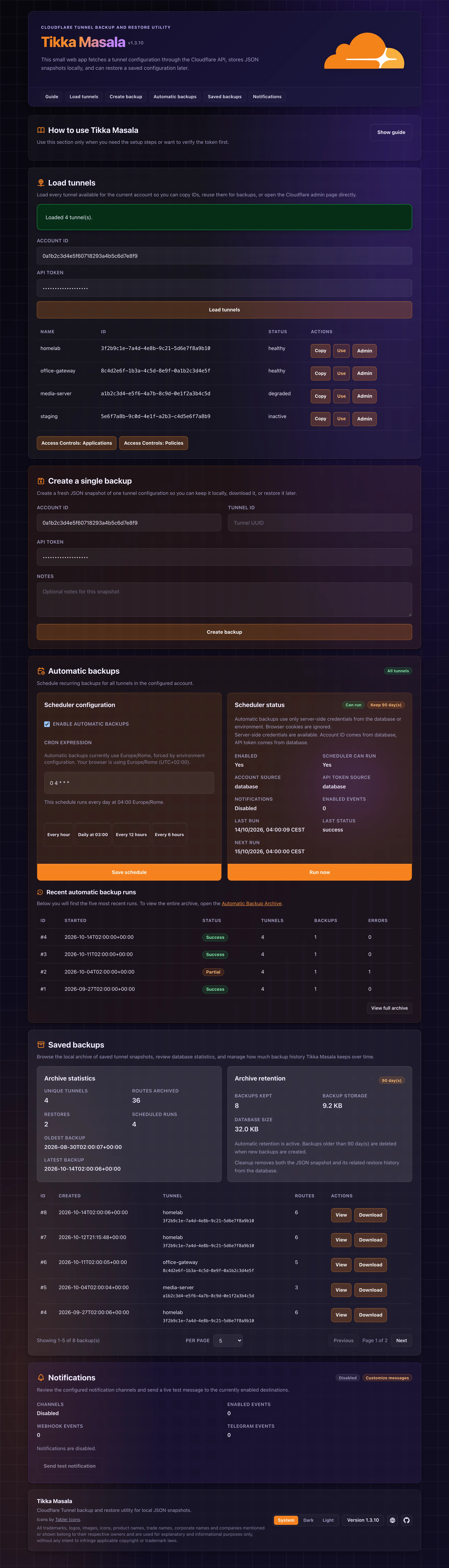
The scheduler is built into the app and stores its configuration in the local SQLite database. From the Automation page you can enable or disable automatic backups, set a cron expression, run the job immediately with Run now, set the retention, and see the last run, next run, and recent execution history (full history at /automation/runs).
By default, automatic backups use the timezone detected from the browser when you save the schedule. Set AUTO_BACKUP_TIMEZONE for a fixed server-side timezone for all users. Each profile has its own schedule and run history; the timezone is global, and profiles never block each other.
Advanced schedule
The Advanced schedule page (/automation/tunnels) controls backup scope and per-tunnel frequency.
- All tunnels (default): every tunnel in the account is backed up on each run, with optional per-tunnel frequency throttling.
- Selected tunnels only: only the tunnels you explicitly check are included in each run.
Per-tunnel frequency: Every run (default), Once per week (skipped if a backup exists within the last 7 days) or Once per month (skipped if a backup exists within the last 30 days). This lets you run the scheduler daily while backing up low-priority tunnels only once a week.
Automatic backups require the saved server-side credentials (database, then environment). Automatic and manual backups share the same archive. A single-tunnel Back up does not take the profile's run lock, so pressing it during a run can save a duplicate snapshot. Old backup files and related database records (including restore history) are deleted automatically after new backups are created, using the retention set per profile on the Automation page (1 to 36500 days; empty means BACKUP_RETENTION_DAYS for Default, otherwise keep forever).
Backup archive
The Backups page lists every saved backup, with This profile and Other accounts views, tunnel and origin (manual or automatic) filters, a notes column, and archive statistics. Back up with a note saves one tunnel with a note of up to 500 characters.
Notifications
Tikka Masala can send server-side notifications through a generic webhook and/or Telegram. Set NOTIFICATION_WEBHOOK_URL / NOTIFICATION_WEBHOOK_EVENTS and/or TELEGRAM_BOT_TOKEN / TELEGRAM_CHAT_ID / TELEGRAM_NOTIFICATION_EVENTS.
Supported events: notification_test, manual_backup_success, manual_backup_failed, auto_backup_success, auto_backup_partial, auto_backup_failed, restore_success, restore_failed, retention_cleanup. If a channel's events variable is empty, the default set is enabled: auto_backup_success, auto_backup_partial, auto_backup_failed, restore_failed, retention_cleanup.
Webhook notifications send a JSON payload with app name and version (version as the UI shows it, version_raw as built, e.g. the git describe output of a dev image), event name, message, timestamp, and event-specific details. Telegram sends the same information as a plain-text message, compact by default (title and message only); uncheck Compact Telegram notifications on the Notification messages page to append the key: value details block. Notification destinations from the environment are shown read-only on the Automation page (the webhook by its host only, Telegram by the end of the chat ID); use Send test to all destinations (or the per-row Test) there to verify delivery.
Destinations can also be added per profile on the Automation page (a webhook URL, or a Telegram bot token and chat ID, with the events to send). Their secrets are stored encrypted and shown only masked, each has its own Test button, and an event goes only to the destinations of its profile. Destinations from the environment belong to Default and are read-only. The webhook payload carries a profile field (id and name).
Customizing notification messages
Each event has a built-in default message. Override it from /settings/notifications. Messages support {placeholder} tokens replaced at runtime; {version}, {timestamp} and {profile} are always available. With more than one profile the built-in default messages start with [profile name].
| Event | Available tokens |
|---|
notification_test | (none specific) |
manual_backup_success | {backup_id}, {account_id}, {tunnel_id}, {tunnel_name}, {route_count} |
manual_backup_failed | {account_id}, {tunnel_id}, {error} |
auto_backup_* | {trigger}, {account_id}, {tunnel_count}, {backup_count}, {error_count}, {skipped_count}, {processed_count}, {backed_up_tunnels}, {skipped_tunnels} |
restore_success | {backup_id}, {account_id}, {tunnel_id} |
restore_failed | {backup_id}, {account_id}, {tunnel_id}, {error} |
retention_cleanup | {deleted_count}, {retention_days}, {cutoff} |
For auto_backup_* events: {tunnel_count} is every tunnel discovered on the account, {processed_count} is backup_count + error_count, {skipped_count} is tunnels skipped by scheduling rules, and {backed_up_tunnels} / {skipped_tunnels} are comma-separated tunnel name lists (or - if none). Leaving a field empty restores the built-in default; unknown tokens are left as-is.
Demo mode
Set DEMO=true to try the UI without persisting auth data or enabling server-side automation: credentials come only from the environment (no setup screen, Settings is read-only), nothing is written to SQLite and no key file is created, automatic backups, notifications and the backup archive are disabled, and there is a single profile with no switcher. Only Tunnels and Settings are available; the per-row Back up button downloads a snapshot of the tunnel's JSON without saving it.
Security
- The API token is never persisted in plaintext in the database, never shown in the UI after saving, and never held by the browser.
- The key comes from
TOKEN_ENCRYPTION_KEY or from DATA_DIR/encryption.key (mode 0600, never overwritten).
- Credentials are validated against Cloudflare before saving.
- Plaintext tokens saved by older versions are upgraded to encrypted form the first time they are read.
- Notification webhook URLs and Telegram bot tokens are stored encrypted and shown only masked. Older versions could write the Telegram bot token to the container logs at INFO level (the
httpx logger, now set to WARNING): rotate the bot token if such logs were shared.
The web UI has no built-in authentication, and it can restore tunnel configurations with your token. Keep port 8080 on a trusted network, or put it behind a reverse proxy with authentication (Cloudflare Access works well).
FAQ
What happens if I don't set TOKEN_ENCRYPTION_KEY?
Nothing to worry about: the app generates a key as encryption.key in the data directory on first use and keeps using it. Keep that file with your data; without it the saved token can't be decrypted and you'd enter it again on the setup screen. Before downgrading to an older version, set TOKEN_ENCRYPTION_KEY to the content of that file.
Why does a restored route return 502 even though the backup worked fine?
Check whether that rule's origin is localhost or a loopback address: the backup detail page flags these as host-local. When cloudflared runs in a container, localhost means the container, not the Docker host. Point the rule at host.docker.internal, the bridge gateway IP, or a service/container name instead, and use Preview changes to see the full ingress diff before you apply.
The tunnel name link says "Cloudflare Tunnels have moved". What should I do?
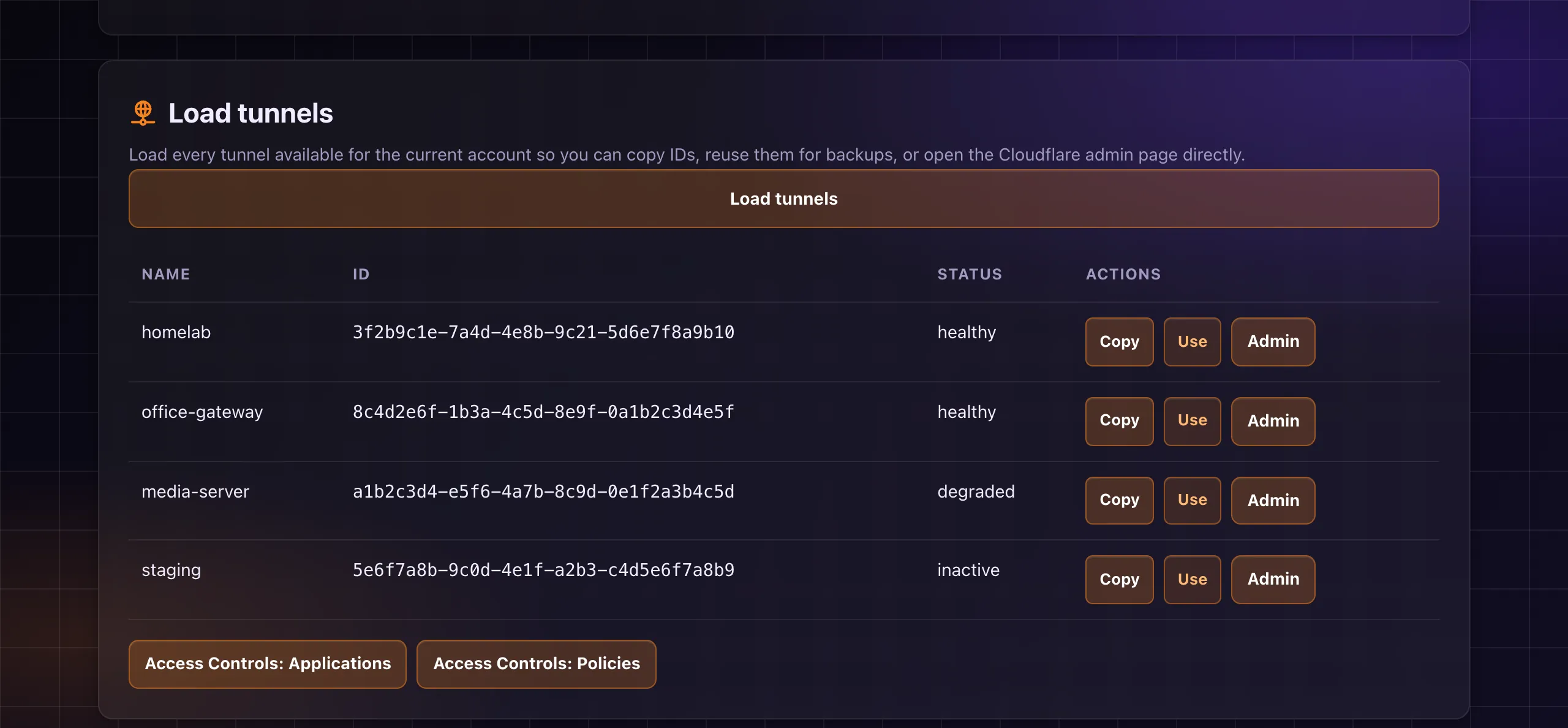
Cloudflare moved Tunnels out of Zero Trust and under Networking. Update to 1.3.9 or later: the tunnel name link in the tunnel list now opens the tunnel's overview at its new location. The Access Controls links (Applications and Policies) are unaffected.
Can I back up only some tunnels, or less often for some?
Yes, on the Advanced schedule page: back up all tunnels or a selected subset, and set a per-tunnel frequency of every run, once per week, or once per month.
Can I use webhook and Telegram notifications together?
Yes, they're independent channels: enable either one or both, each with its own event list.
Does Tikka Masala back up my whole Cloudflare account?
No. It backs up only the tunnel configuration of the tunnels you back up, plus metadata like timestamp and tunnel name, not account-wide settings, DNS records or Access policies.